This section describes how to activate your MobileHub. Please make sure that you followed the installation instructions first.
Now, you will need:
- a magnet. Please only use accessories which are recommended by Kerlink.
- a compatible terminal (mobile, tablet, pc) to connect and manage your MobileHub in Bluetooth. Please check you can access to internet, as an example to https://kerlink.com/.
¶ Step 1: Log in to the MobileHub web application on your terminal
 Open the web application on your terminal: https://app.trackvalue.wanesy.com/
Please use
Chromeon Android, PC or Mac, orBluefyon iOS to ensure compatibility with the application.
You may need to install a compatible web browser from the store if one is not already installed.Please also make sure Bluetooth is activated on your terminal.
To connect to the application, please log in using your email address and your password.
Your account for the web application must be created by Kerlink support team.
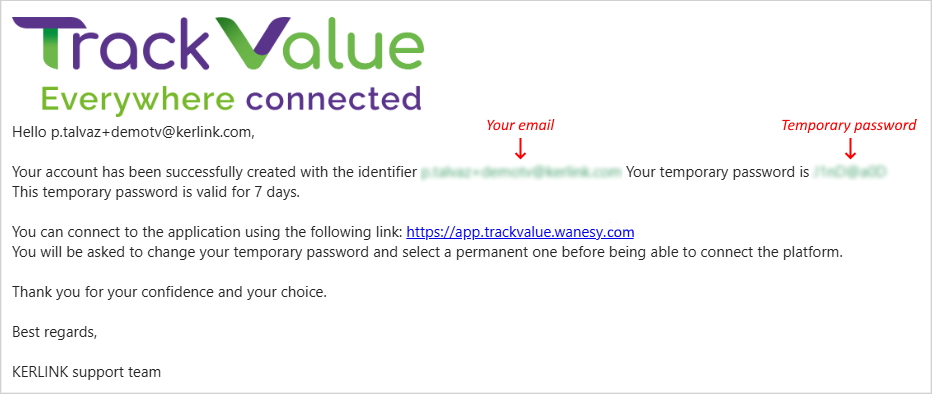
To request it, please send your email address to support@kerlink.com.On first login, you will need to use the temporary password provided by email.
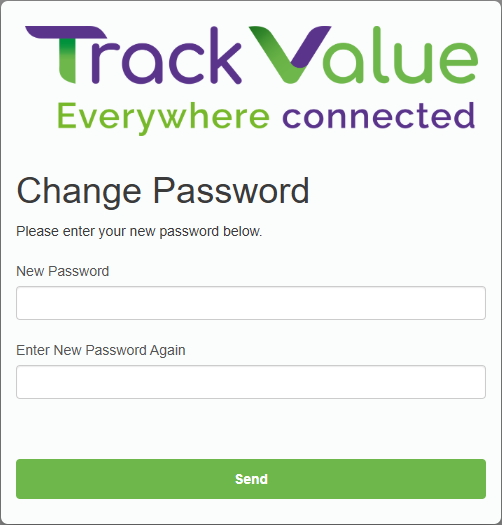
Then you will be prompted to enter a permanent password.
The temporary password is valid for 7 days.
If you have not received your temporary password, please check your inbox (and spam folder).If you forget your password, click “Forgot your password?” on the login page and follow the instructions.
For any login issues, please don't hesitate to contact Kerlink support team (support@kerlink.com).
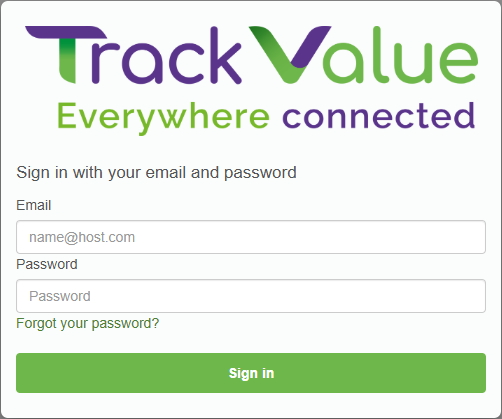
More details about the first login...
On first login, you need to enter your email address and the temporary password provided by email.
You will be asked to change your temporary password and select a permanent one.
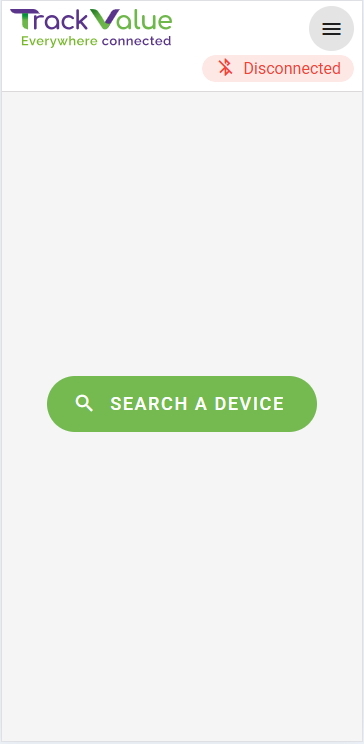
After you log in, you should see the home page of the application with the SEARCH A DEVICE button.
¶ Step 2: Start the Bluetooth on your MobileHub
To save battery, the MobileHub Bluetooth is turned off most of the time. It must be started on-demand.
Position the magnet on the MobileHub as illustrated below, and wait until the led starts blinking. Once this is the case, you have 5s to remove the magnet.
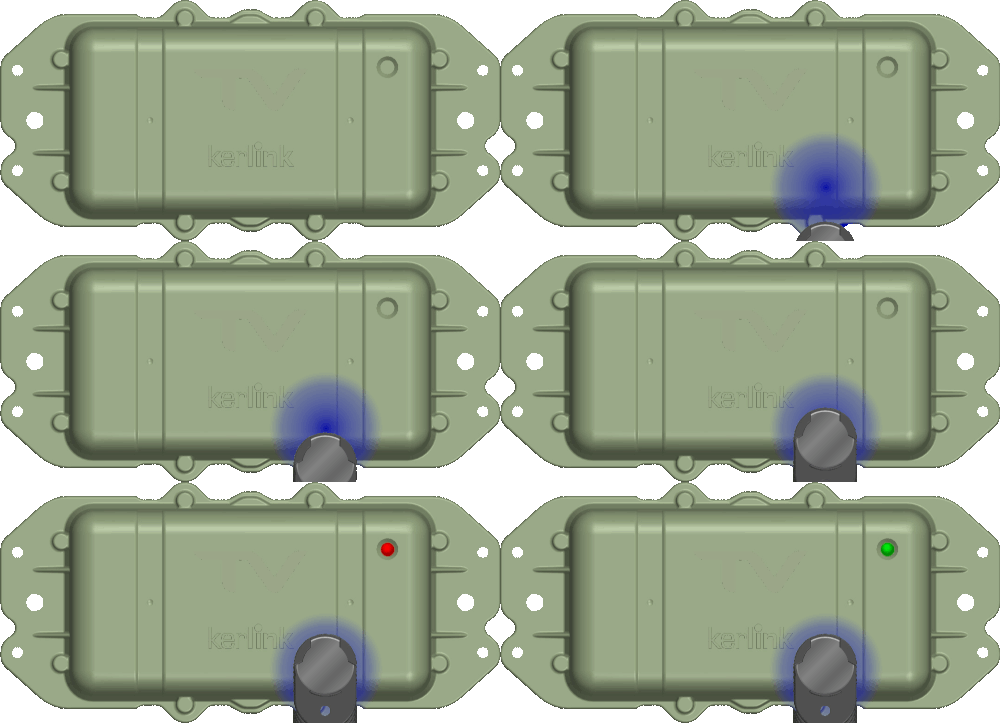
After having removed the magnet, the led starts to slowly blink in red, as illustrated. You now have 5min to connect to your MobileHub in Bluetooth (Step 3).
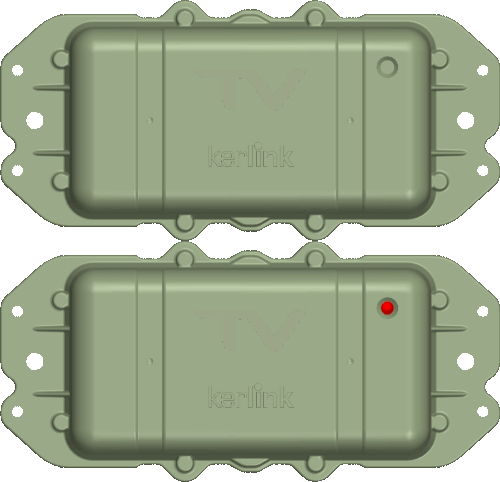
If you leave the magnet for too long, the led will stop blinking and nothing will happen.
→ Please remove and reposition the magnet before continuing to the next step.
¶ Step 3: Connect to your MobileHub with the application
Go to the web application on your terminal and click on SEARCH A DEVICE from the home page.
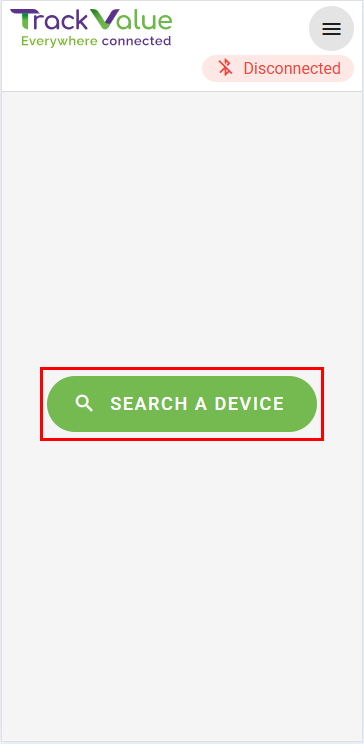
The application will scan for nearby MobileHubs. Select the one you would link to manage.
The name of your MobileHub is
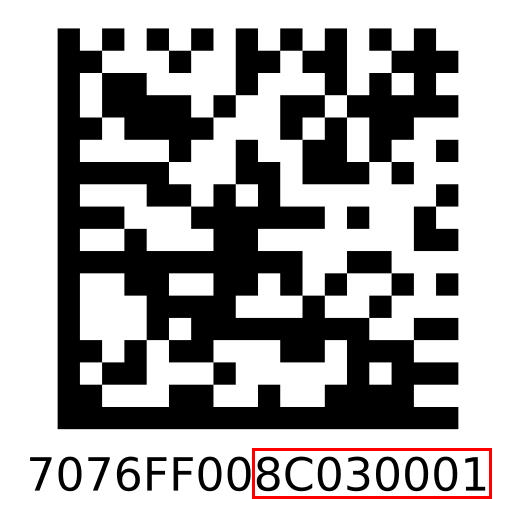
TV-XXXXXXXX, with XXXXXXXX replaced by the last six hexadecimal digits of its EUI.
The EUI information is present on the sticker placed on the MobileHub.
In this example, the MobileHub would be identified by
TV-8c030001.
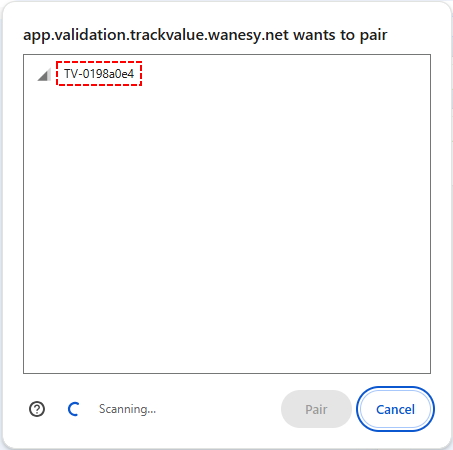
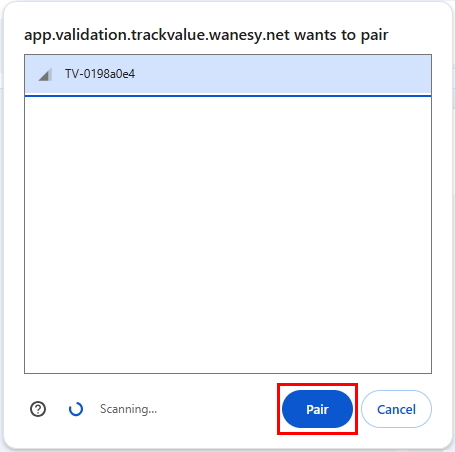
Then, the pairing step depends on the web browser your are using:
- With
Chrome: after having selected your MobileHub, click onPairto pair it
- With
Bluefy: after having selected your MobileHub, pairing will start automatically
You must then establish a Bluetooth connection to operate your MobileHub.
The Bluetooth connection procedure depends on the firmware version installed on the MobileHub.
The connection workflow changes after firmware version 0.15.
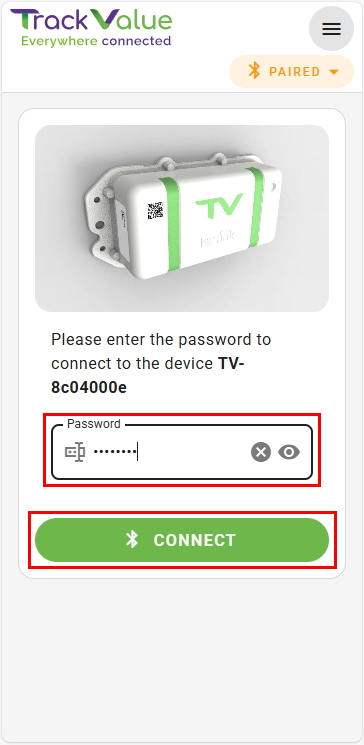
For MobileHub running firmware version 0.15 or earlier, a password is required to establish the Bluetooth connection.
This password must be obtained from your MobilHub's provider.
More details about establishing the Bluetooth connection with password...
Once your MobileHub is paired, you should see a confirmation message and the connection status changes to PAIRED in the header menu.
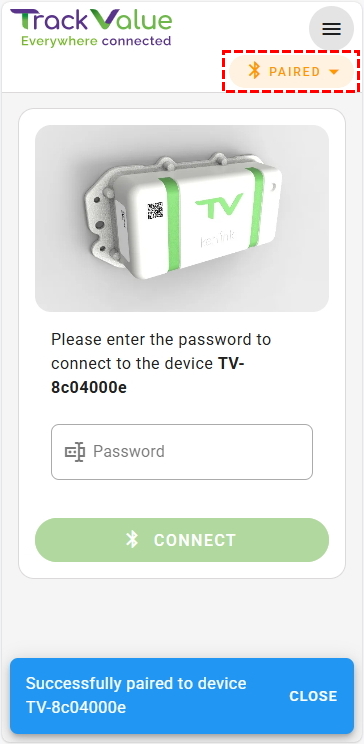
Please enter the provided password then click on CONNECT to establish the connection.
For MobileHub running firmware version above 0.15, the Bluetooth connection is established automatically, as long as you have the necessary permissions to operate the MobileHub.
If you don't have the required permissions, the Bluetooth connection will fail and a permission error will be displayed.
For any permission issues, please don't hesitate to contact Kerlink support team (support@kerlink.com).
Your MobileHub is now successfully connected!
¶ Step 4: Activate your MobileHub
When your MobileHub is connected for the first time and is not yet activated, a popup window automatically opens.
If you choose not to start the activation process right away...
At any time, you can start the activation process by clicking on ACTIVATE DEVICE.
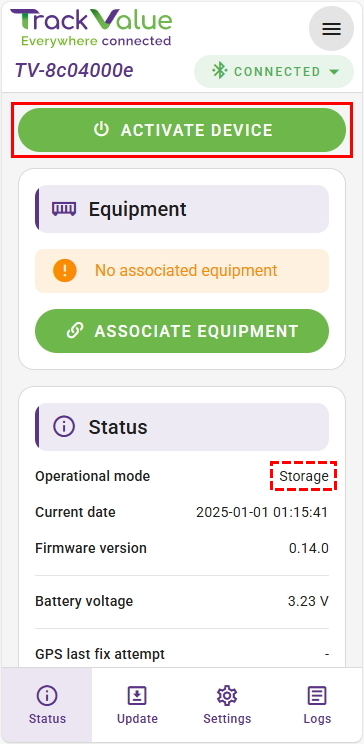
This reopens the activation popup window.
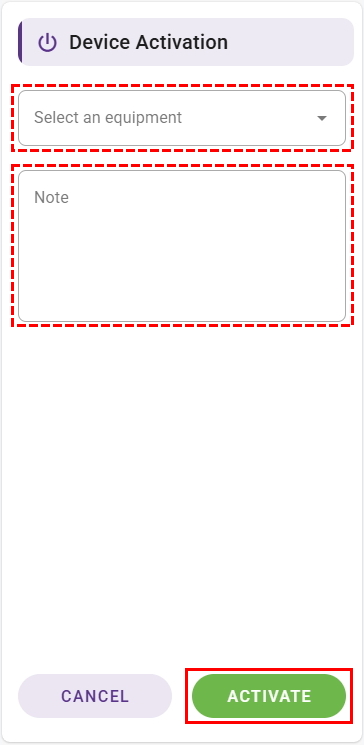
To activate your MobileHub using the application, click on ACTIVATE.
At the same time as the activation, you can optionally associate an equipment to your MobileHub:
- Select the equipment type (e.g. wagon) on which the MobileHub will be installed
- Set an identifier for the equipment (mandatory)
- Assign a name to the equipment for easier identification (optional)
You also have the option to add an annotation (e.g. notes about installation or location).
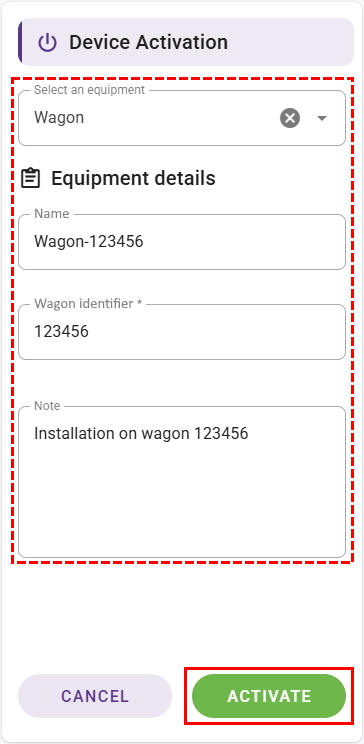
After clicking on ACTIVATE, you will be asked to validate your activation request.
The MobileHub reboots and green led stays on during 5s.
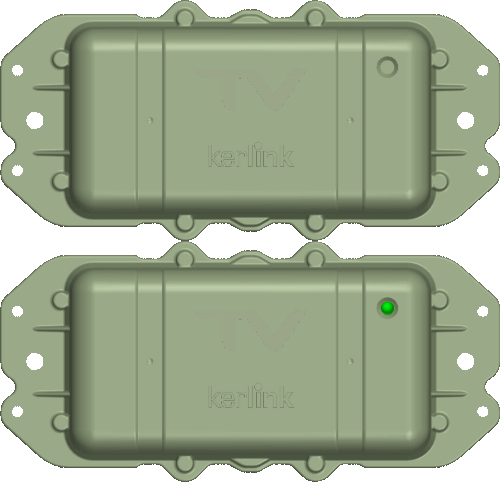
Congrats, your MobileHub is now activated!
Please be aware that after rebooting the MobileHub, the Bluetooth connection will be lost.
You will have to enter the password again to re-establish the connection.
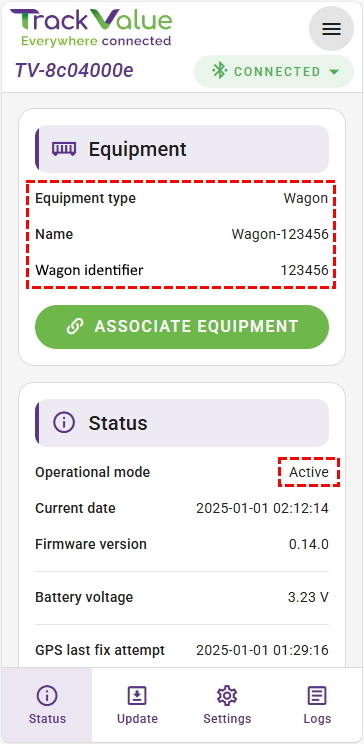
You can check that the operational mode changed from Storage to Active.
If you associated an equipment with your MobileHub during activation, the information is also displayed.
¶ Basic checks
Once the green led is off, how to check the activation status ?
- Trigger a Bluetooth advertising again and check the status from the main menu of the application.
- For advanced operations, please refer to the dedicated local management section.
 Learn more about how to read the operation status from the led in the led full guide.